

Go to Settings → Processes → Automatic Tasks and click New:
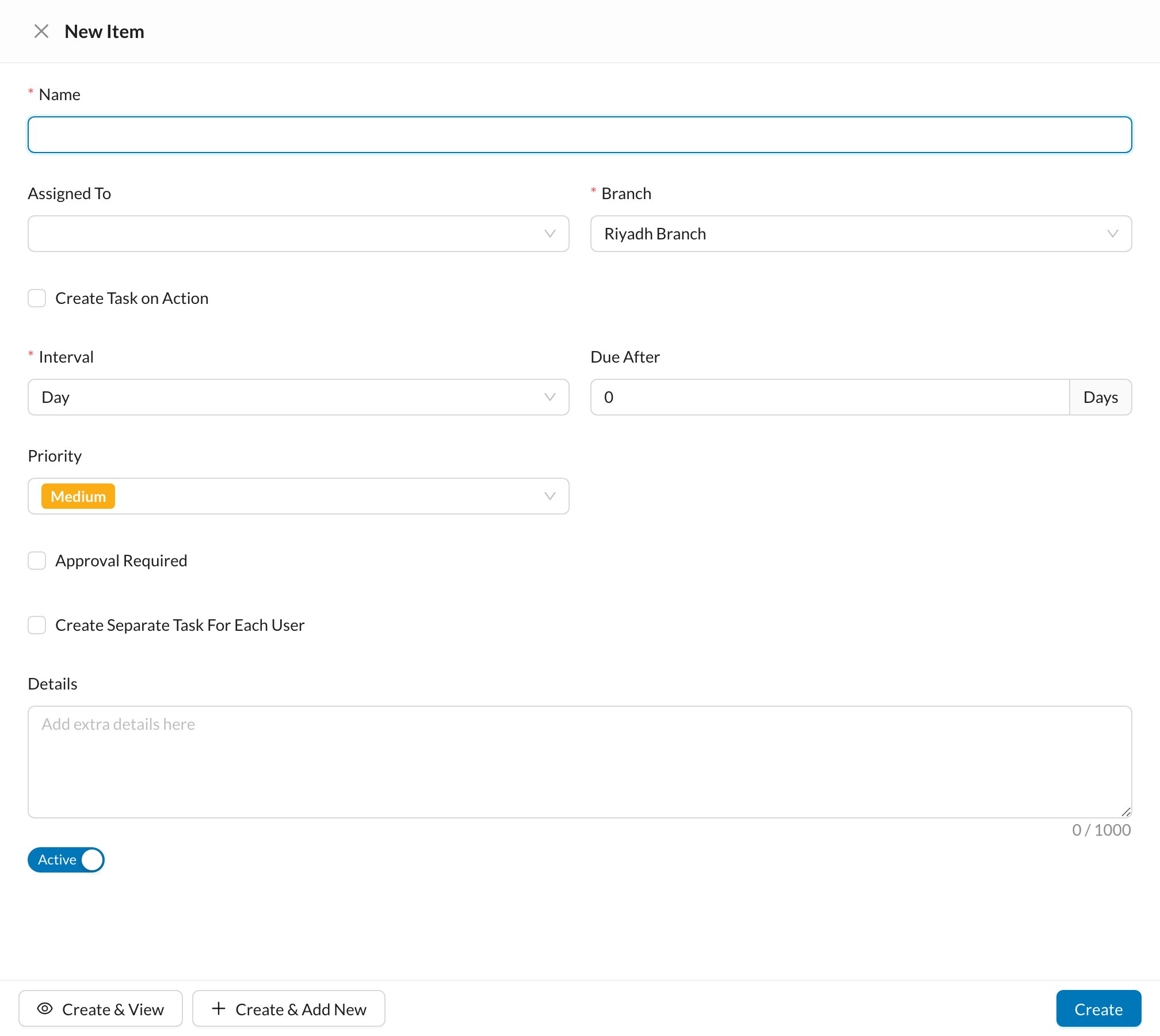
- Name, Assigned To (one or more users) and Branch.
- When to create it:
- Tick Create Task on Action and choose When: for example a new patient, invoice, payment or prescription, or an appointment status change. The task is linked to that patient or record.
- Or choose an Interval: every Day, Week (on chosen weekdays) or Month (on chosen days).
- Due After: the number of days to complete it.
- Priority: High, Medium or Low.
- Approval Required: a manager must approve the task after it’s done.
- Create Separate Task For Each User: each assigned user gets their own task, instead of one shared task.
- Active.