

Download the PDF guide
The same guide in 3 pages, to print or keep.
Log in and get the app
- Log in: Open my.dentolize.com (dental) or my.medicolize.com (medical). Log in with your email, or click Or login with username and enter the Clinic Login Name, your username and password.
- Forgot password: Email login: click Forgot your password? and use the link we email you. Username login: ask your clinic owner or admin to reset it in Settings → Users.
- Mobile app: Install it from the links below. One app works for both Dentolize and Medicolize accounts.
my.dentolize.com
Dental clinics
my.medicolize.com
Medical clinics
App Store
iPhone app
Google Play
Android app
1. Find your way around
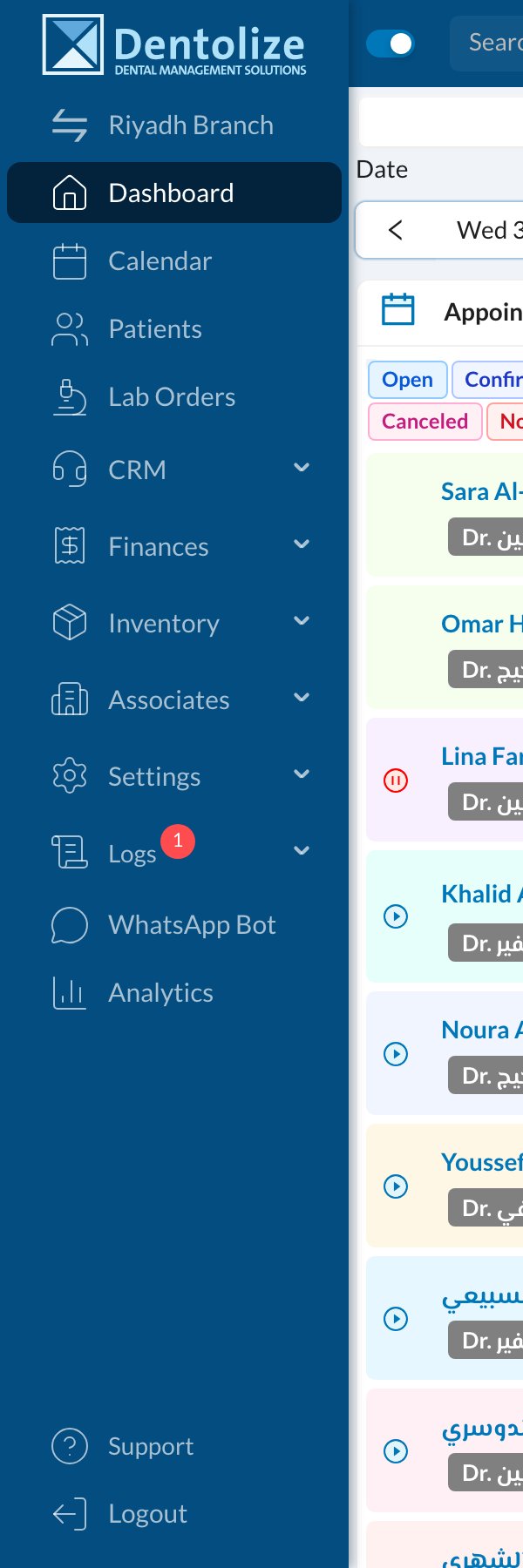
The side menu on the left opens every part of the system. The top bar has patient search, the + menu for quick actions, tasks and notifications.- Calendar: today’s appointments by room or doctor.
- Patients: search, add and open patient files.
- + (top bar): new appointment, patient, invoice or SMS from any page.
2. Your day in the calendar
Open Calendar to see the day. Move between days (1), pick a date (2), show one column per doctor with By Doctor (3), filter by room or doctor (4, 5), open settings (6) or change the view (7). Click any appointment to see the patient and quick actions.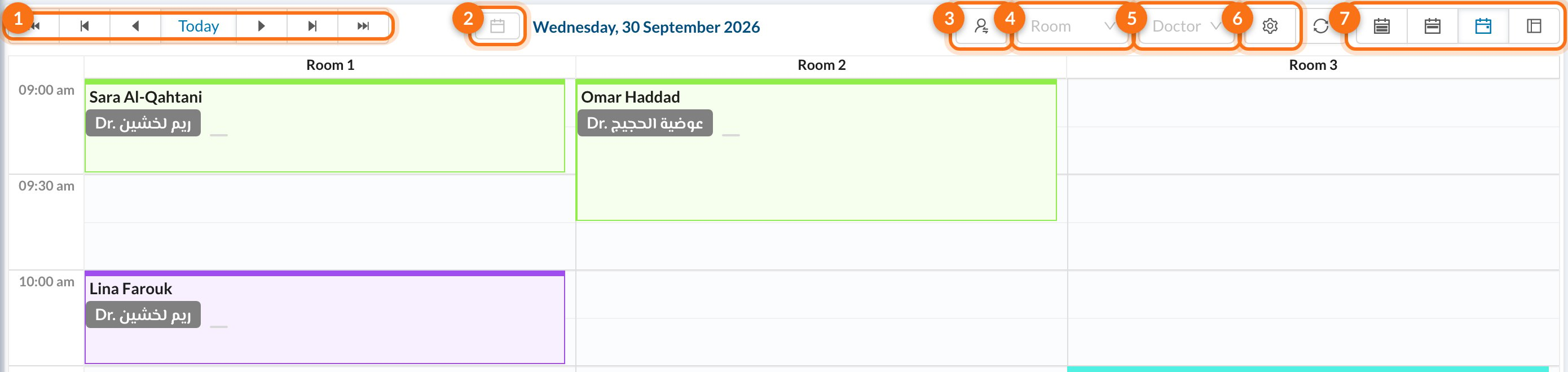
3. Register a patient and book
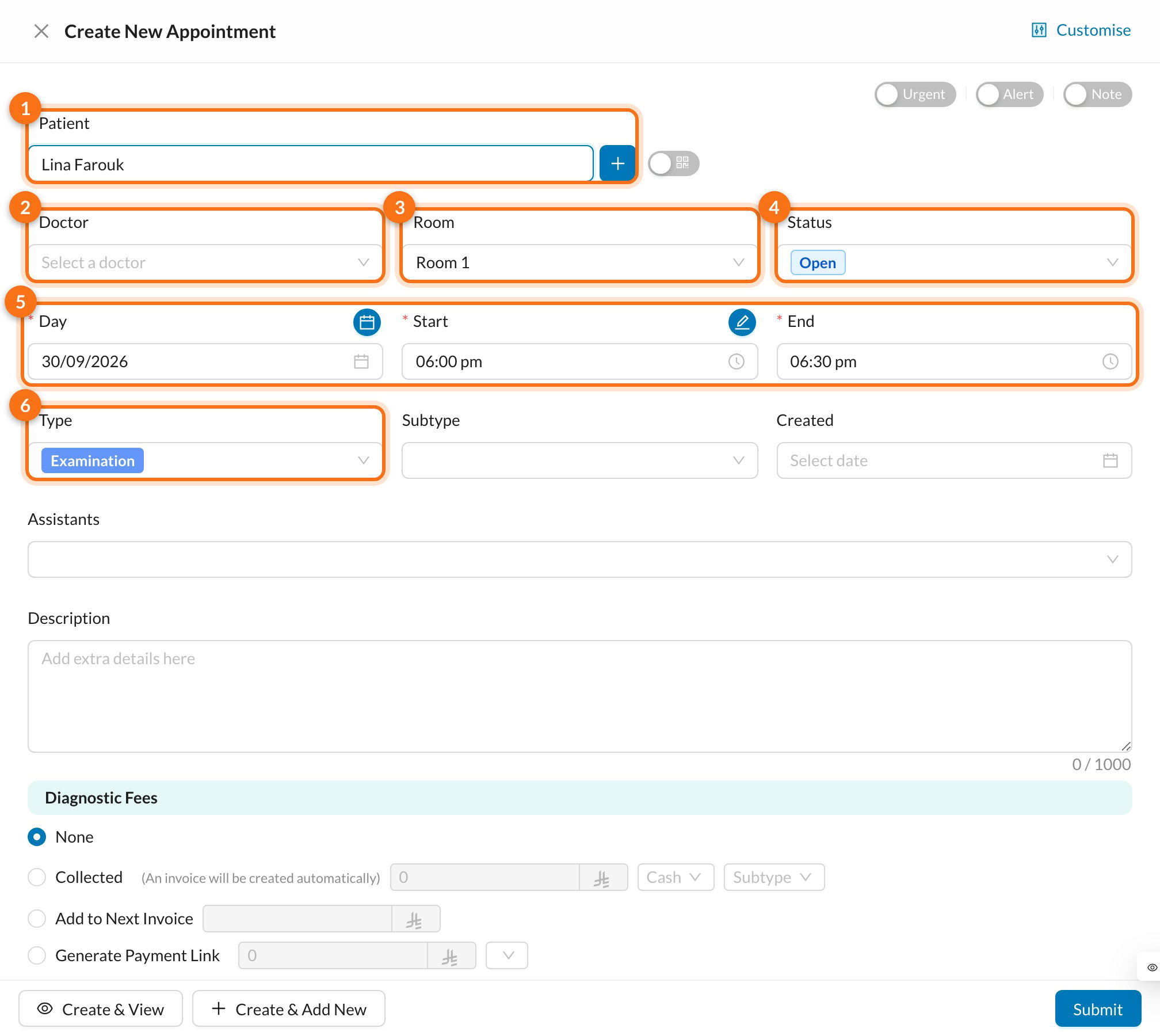
Click an empty time in the calendar, or + → New Appointment.- Search the patient by name or phone, or click + to add a new one.
- Choose the Doctor, Room, Day and time.
- Pick the Type and click Submit.
4. Check patients in
When the patient arrives, open the appointment and change its status: Confirmed → Checked In → In Progress → Completed. Colours on the calendar show each status at a glance.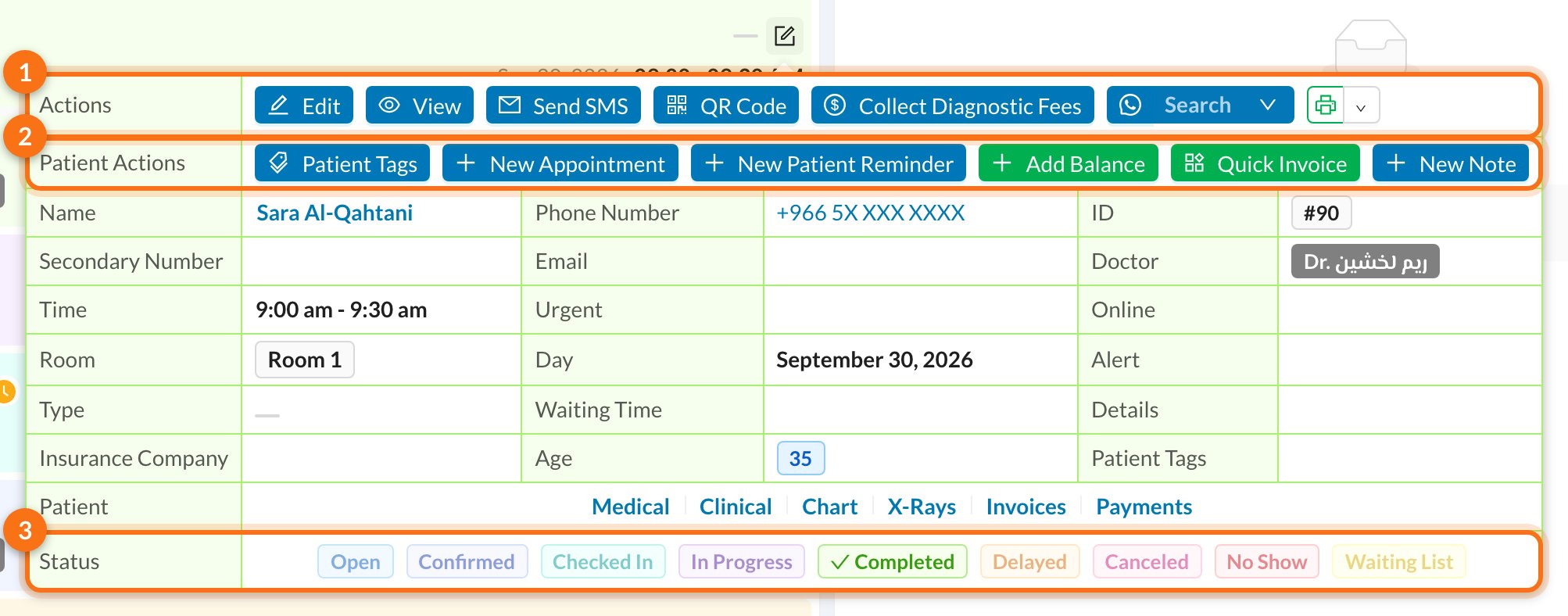
5. Collect fees and payments
Collect the consultation fee when booking, or from the appointment menu. For treatments, open the patient’s Invoices tab, create the invoice and Add Payment.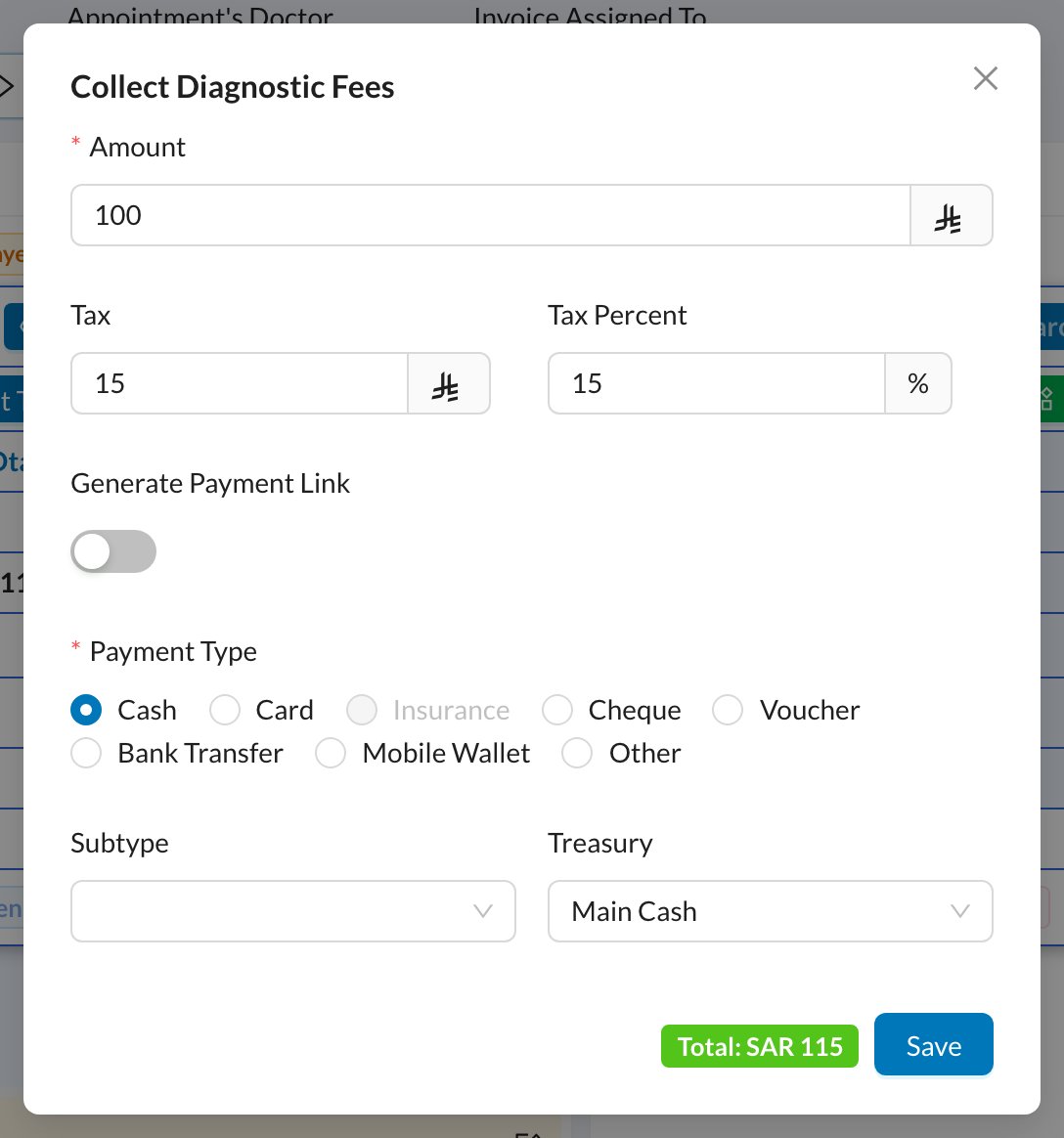
6. Messages and reminders
Appointment confirmations and reminders go out automatically. To message a patient yourself, click Send SMS from the + menu or the appointment.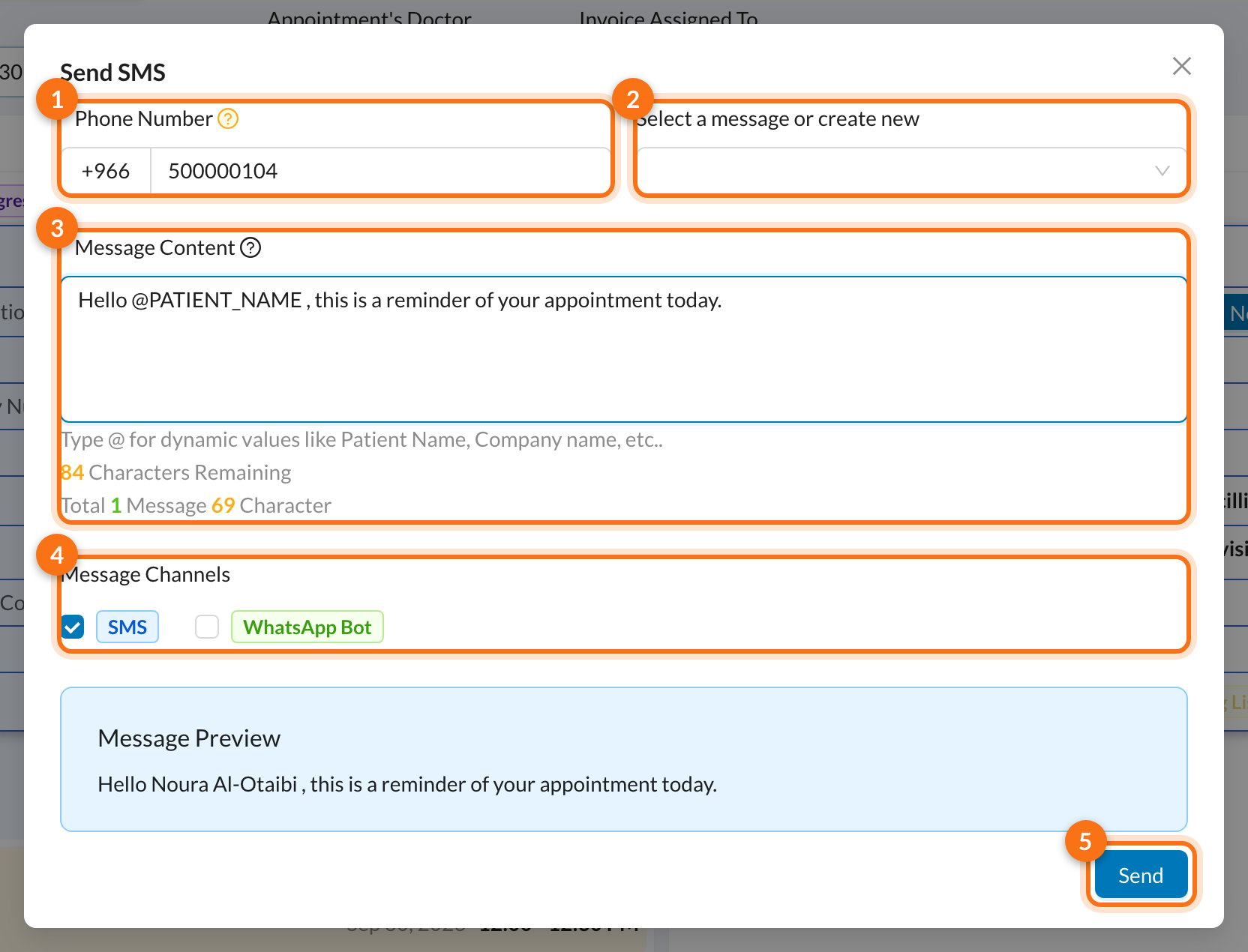
Your first-week checklist
- ☐ Log in and set your language and password
- ☐ Install the mobile app
- ☐ Find today’s appointments in Calendar
- ☐ Book a test appointment
- ☐ Check a patient in and complete the visit
- ☐ Collect a consultation fee
- ☐ Create an invoice and record a payment
- ☐ Send a reminder SMS
On your phone
- See the day’s appointments and patient files on the go.
- Clock in and out for attendance from your phone.
- Get notifications about new bookings and tasks.