

Download the PDF guide
The same guide in 3 pages, to print or keep.
Log in and get the app
- Log in: Open my.dentolize.com (dental) or my.medicolize.com (medical). Log in with your email, or click Or login with username and enter the Clinic Login Name, your username and password.
- Forgot password: Email login: click Forgot your password? and use the link we email you. Username login: ask your clinic owner or admin to reset it in Settings → Users.
- Mobile app: Install it from the links below. One app works for both Dentolize and Medicolize accounts.
my.dentolize.com
Dental clinics
my.medicolize.com
Medical clinics
App Store
iPhone app
Google Play
Android app
1. Follow up invoices
Go to Finances → Invoices. Search and filter (1) by date, branch, doctor, patient or insurance company, and click Show Analytics (2) for the Total, Paid and Remaining. Add Payment (3) shows on invoices not fully paid, and the pencil (4) edits one. Filter the Remaining column by Greater than 0 to list unpaid invoices, then Send Message To All to remind those patients.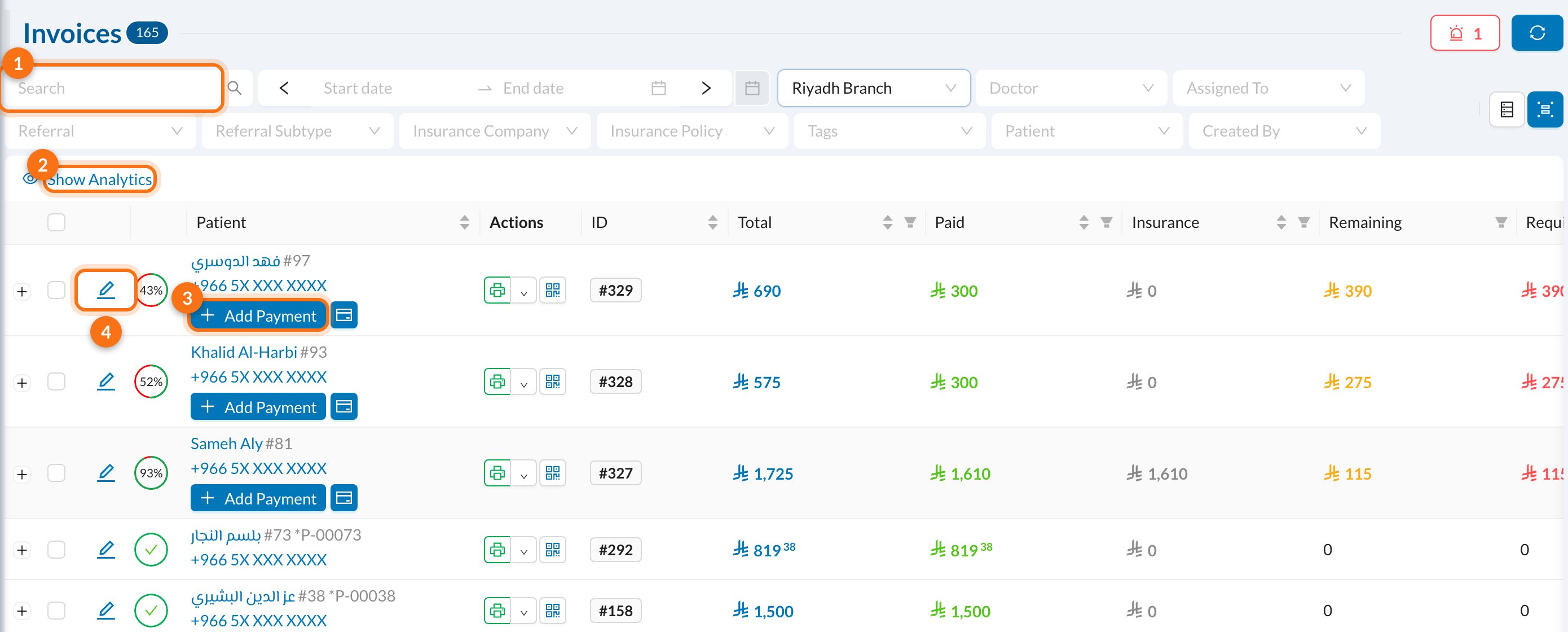
2. Edit or cancel an invoice
Open the invoice and click Edit Invoice. With no payments yet you can change everything. Once it has payments, only its details change; use Add Operations, Remove from Invoice or Edit Discount on the invoice page instead.- Release writes off a remaining amount you won’t collect.
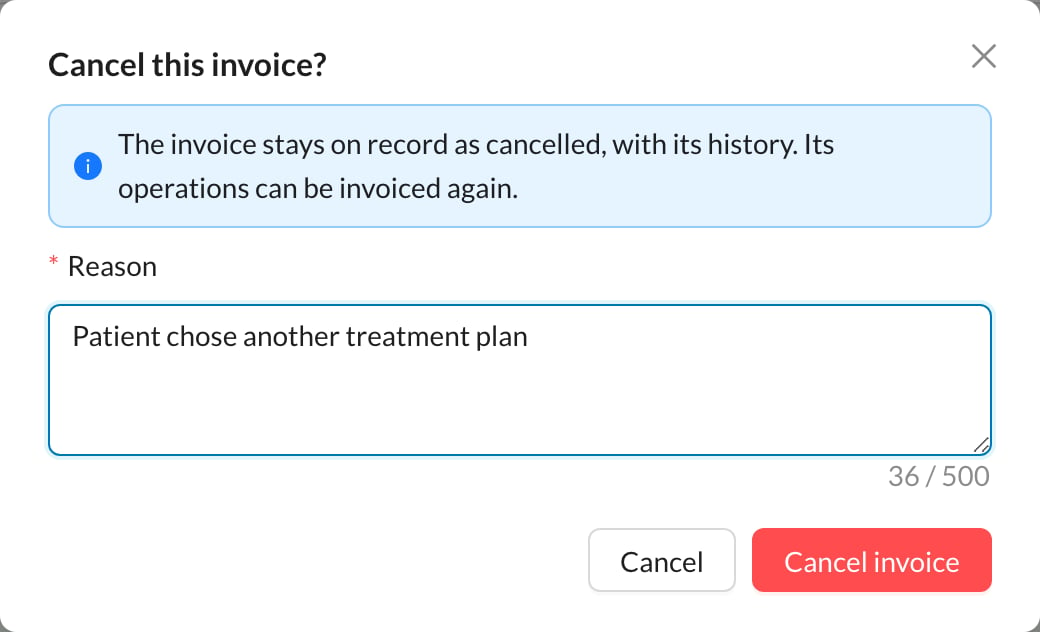
- Cancel invoice needs a Reason and can’t be undone.
- Money already paid is refunded or kept as the patient’s balance.
3. Payments, refunds and patient balance
Finances → Payments lists every payment; Show Analytics gives totals by payment type. Click the edit icon on a payment to change its type, date or details (not the amount), Delete it, Move to Balance, or Refund Payment: choose the Refunded Amount and the treasury it comes out of, then Confirm. A refund creates an expense and can’t be undone.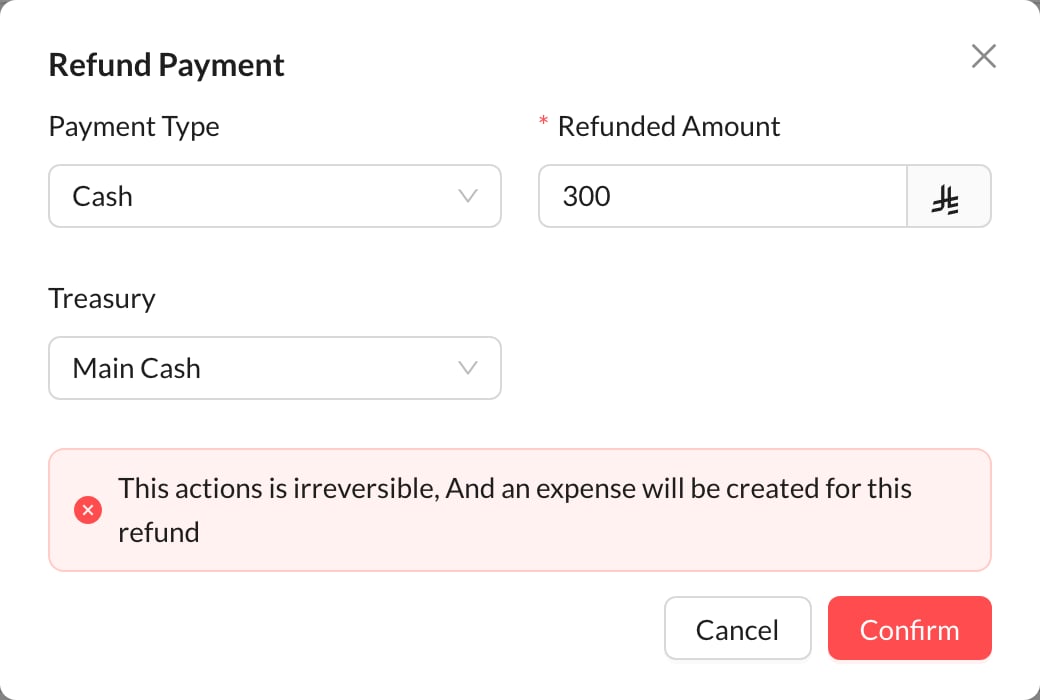
4. Expenses and expense payments
In Finances → Expenses, click New Expense.- Enter the Name, Total and Type; link a User, Lab or Supplier if needed.
- Tick Paid to pay now: enter the Price, Payment Type and Treasury.
- Click Create. Pay the rest later with Add Payment, or Add Bulk Payment for many.
5. Treasuries and transfers
A treasury is a cash drawer, bank account, card terminal or safe. Finances → Treasury shows each one’s Balance. To move money, click Internal Transfer, enter the Amount, choose the Received Treasury and click Save. If you pick a user in Assigned To, it stays pending until they click Confirm Receiving.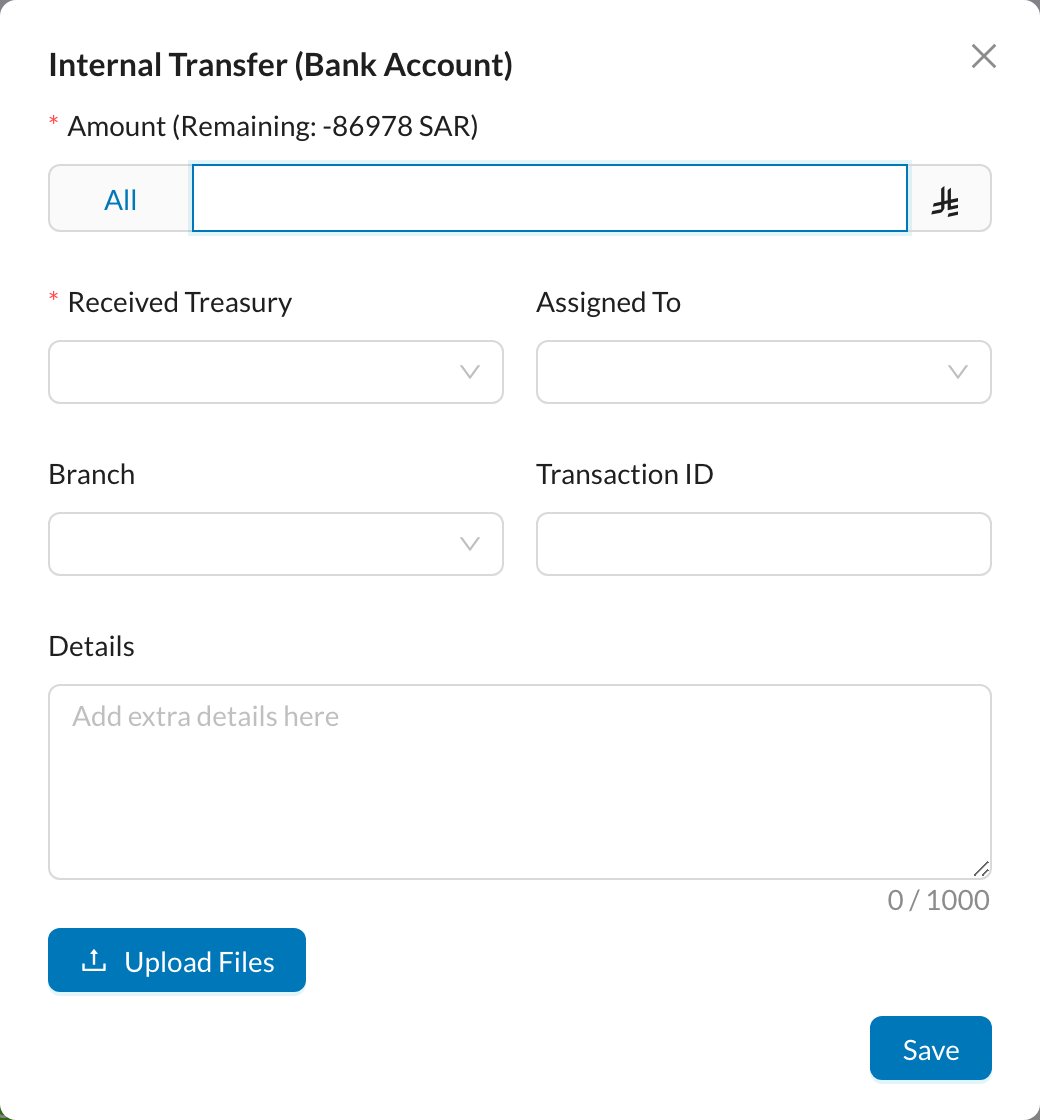
6. Reports, income statement and salaries
Analytics → Reports sums up a month on one printable page, down to the final profit. Analytics → Income Statement shows Revenue, Cost of Revenue, Gross Profit, Operating Expenses and Net Profit. Analytics → Salaries shows what each doctor and user earned: set the dates to one full month so the base salary is included. Hover the ? next to a Salary to see how it’s worked out.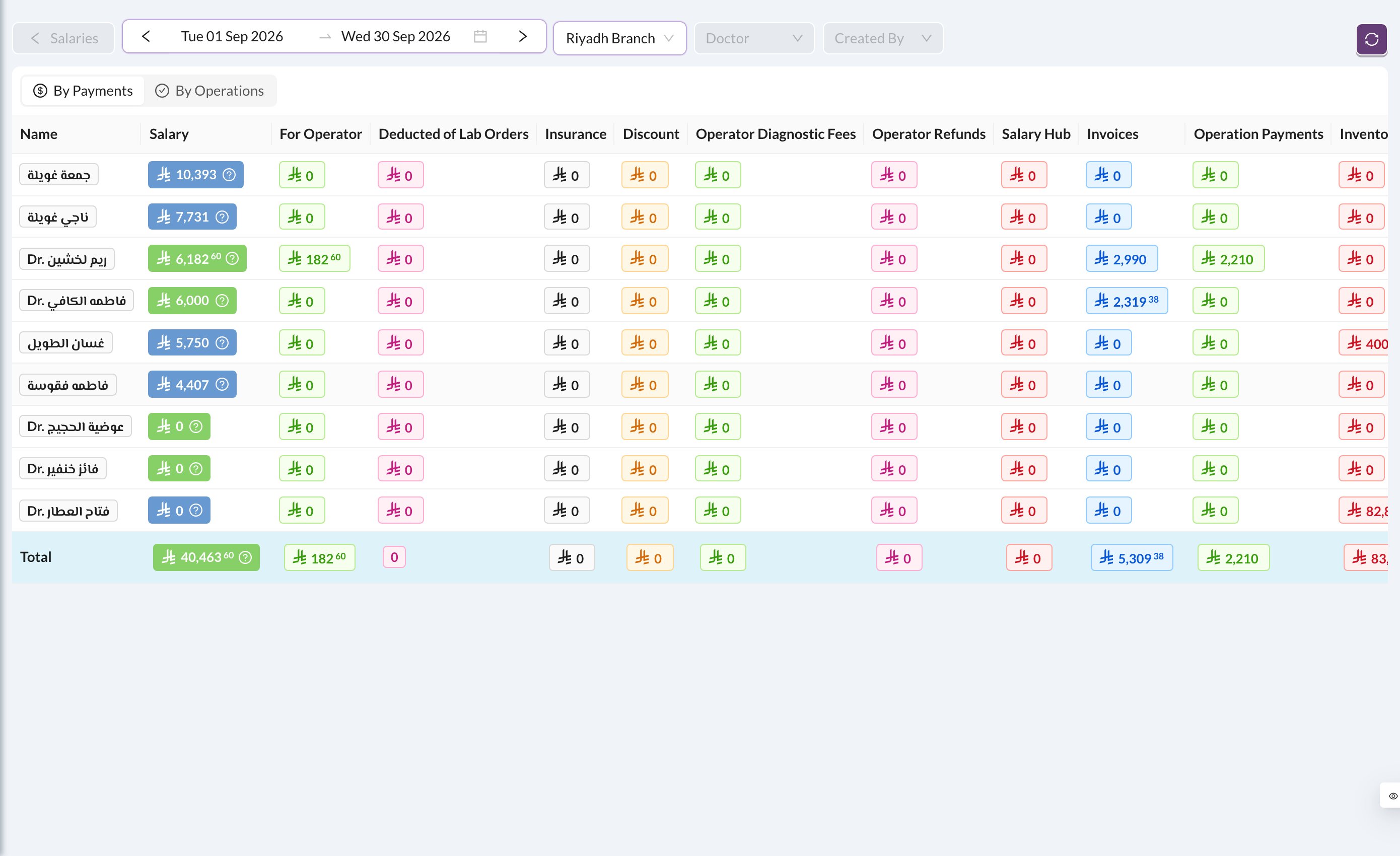
7. Insurance claims and ZATCA
Insurance: each insurance share becomes an unclaimed Insurance payment. When the company pays, click Mark Claimed on it in Associates → Insurance Companies → Payments. Saudi clinics: connect ZATCA once from Settings → Business Registration and Zatca Integration. E-invoices aren’t sent automatically: check Finances → Report E-Invoices and use Retry Failed for rejected ones. Read more: Insurance claims · Connect to ZATCA · ZATCA report failedYour first-week checklist
- ☐ List unpaid invoices and remind patients
- ☐ Record a payment and a refund
- ☐ Record an expense and pay it
- ☐ Move money with an Internal Transfer
- ☐ Print last month’s Reports
- ☐ Mark an insurance payment as claimed
On your phone
- Get the Daily Summary of invoices and payments at 11:30 PM.
- Get notifications about invoices assigned to you.
- Clock in and out for attendance from your phone.